Many agencies still spend countless hours on tasks that should run automatically—think plugin updates, deployment prep, and client notification emails. These chores can sap your billable hours and open the door to errors.
Automation is the fix. It lets you save time, reduce mistakes, and keep your team focused on high-impact client work. It also paves the way for growth since you can apply proven processes to new sites or updates without reinventing the wheel each time.
This guide outlines automation workflows designed specifically for WordPress agencies. You’ll learn how to:
- Implement Git-based version control, useful even if not everyone on your team is a developer
- Automate your testing and deployment steps
- Move efficiently from local development to staging and live sites
- Use the Kinsta API to handle updates, health checks, and errors without manual oversight
- Connect your workflow to project management tools
- Create internal automations for onboarding and publishing
Let’s kick things off with the foundation for reliable automation: Git.
Table of Contents
Git-based automation workflows
Git should be part of every WordPress agency’s toolkit, regardless of your team’s technical strengths. It keeps your code clean and organized, encourages better collaboration, and gives you a safety net to roll back changes that don’t go as planned.
Visual tools like GitHub Desktop or GitKraken make it easy for everyone, even those who don’t use the command line, to follow and contribute.
Automating with GitHub Actions or GitLab CI/CD
Version control is your starting point. Once that’s in place, automation tools like GitHub Actions or GitLab CI/CD can handle routine tasks for you.
Set them up to run tests or code quality checks automatically on every push. You can also trigger deployments when code is merged to main branches or when pull requests are closed.
If you need to compile assets or install dependencies before your work hits staging, just add those steps—like composer install or npm run build—into your pipeline. The fewer manual touchpoints, the faster and more reliable your releases.
Here’s a GitHub Action sample workflow that handles dependency installation, code checking, and asset building for a WordPress project:
name: CI for WordPress

on:
  push:
    branches:
      - main
      - staging
  pull_request:

jobs:
  build-and-test:
    runs-on: ubuntu-latest

    steps:
      - name: Checkout code
        uses: actions/checkout@v4

      - name: Set up PHP
        uses: shivammathur/setup-php@v2
        with:
          php-version: '8.2'
          extensions: mbstring, intl, mysqli
          tools: composer

      - name: Validate composer.json and install dependencies
        run: |
          composer validate
          composer install --no-interaction --prefer-dist

      - name: Run PHPCS
        run: vendor/bin/phpcs --standard=WordPress ./wp-content/

      - name: Set up Node.js
        uses: actions/setup-node@v3
        with:
          node-version: '18'

      - name: Install and build frontend assets
        run: |
          npm ci
          npm run build

      # Optional: Add a deployment step here via SSH or Kinsta API/Webhook
      # - name: Deploy to staging/production
      #   run: ./deploy.sh
Kinsta compatibility
If your sites are on Kinsta, it seamlessly connects to these Git workflows. Built-in SSH access means you can deploy straight from your repo or automation pipeline.
With WP-CLI at your disposal, it’s simple to automate post-deploy tasks—like clearing cache, activating plugins, or running database updates. Git brings order, and automation makes your process both predictable and resilient.
Automated deployment pipelines (from dev to production)
A well-built development pipeline lets you move quickly without risking mistakes. With clear, repeatable steps for testing, review, and deployment, you get reliable launches with less stress for your team.
For instance, some agencies use the Kinsta API to automate site creation, staging deployments, and maintenance tasks, streamlining work across hundreds of WordPress sites while keeping development time under control.

Using tools like DevKinsta for local development
DevKinsta lets you create a local WordPress environment that closely matches your live setup.
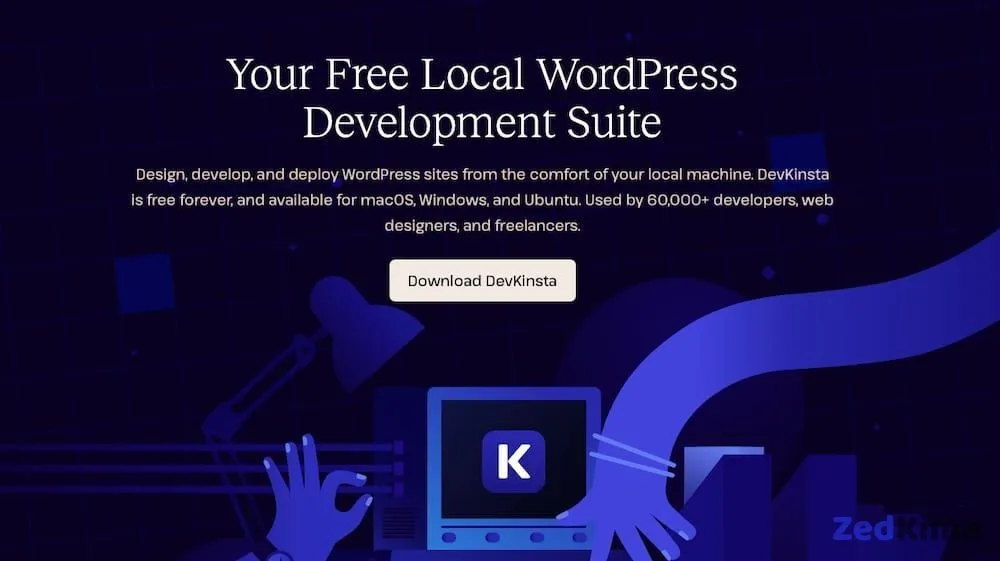
This includes a local database, SMTP server, and error logging. With these tools, you catch issues early, confirm plugin compatibility, and fine-tune features before sending them to staging. You might also enjoy this related read → What Is Localhost? And How Does It Apply to WordPress?
A major plus: DevKinsta blocks outgoing emails by default, preventing accidental messages. When you’re ready, pushing changes to a Kinsta staging environment takes just a few steps.
Composer and WP-CLI for automated dependency management
If you’ve handled multiple client sites, you know how easy it is for plugin versions to drift out of sync. Composer manages plugins, themes, and other dependencies, locking versions and installing them automatically so you can skip manual file uploads.
WP-CLI lets you script routine tasks—like activating plugins, importing content, or changing settings. Together, they provide a streamlined workflow for building and maintaining sites more efficiently.
Here’s an example script configured for post-deployment: it installs Composer dependencies, activates plugins using WP-CLI, and updates site settings—automatically.
#!/bin/bash

# Exit on any error

set -e

# Install Composer dependencies (plugins/themes)

composer install --no-dev --prefer-dist

# Activate all installed plugins via WP-CLI

wp plugin list --field=name | while read -r plugin; do

wp plugin activate "$plugin"

done

# Optional: Set site options programmatically

wp option update blog_description "A fast, automated WordPress build"
Use this script on all client sites for more uniform environments, fewer manual actions, and simpler handoffs to QA or content teams.
Deployment to Kinsta environments
After testing your code, deploy it manually with Git + SSH or automate the process via CI/CD. Kinsta’s staging environments make it easy to review updates safely before pushing them live, with uncomplicated backup and rollback options if you need them.
This clear path—from local to staging to production—speeds up your work, keeps surprises at bay, and makes launches run more smoothly for everyone involved.
Managing plugin and theme updates automatically
Keeping plugins and themes up to date for many client sites can quickly become a daily chore. Manual updating is time-consuming; with automation, maintenance runs quietly in the background, letting you stay focused elsewhere.
Automatic plugin updates with Kinsta
Kinsta allows you to turn on automatic updates for plugins and themes on each site. You can track update status in the MyKinsta dashboard, and if needed, choose to delay or exclude certain plugins for a more cautious approach.
You can even test updates in staging first, ensuring your updates won’t disrupt a live site. It adds a layer of safety without bogging down your workflow.
Using the Kinsta API for custom update flows
The Kinsta API is valuable for those managing updates across many sites. It lets you automate checks, trigger updates, or scan for issues—all through custom scripts.
For instance, you might:
- Initiate updates after successful code deployments
- Run health checks and get notified if an update fails
- Send automated alerts when manual review is needed
This gives you automation and visibility, all in one.
Here’s a simple shell script that uses the Kinsta API to update all plugins in staging:
#!/bin/bash

# Replace these with your actual values

KINSTA_API_TOKEN="your_kinsta_api_token"

SITE_ID="your_site_id"

ENVIRONMENT="staging" # or "production"

curl -X POST "https://api.kinsta.com/v2/sites/$SITE_ID/environments/$ENVIRONMENT/wordpress/plugins/update"

-H "Authorization: Bearer $KINSTA_API_TOKEN"

-H "Content-Type: application/json"
Expand on this script to log updates, trigger alerts, or add post-update testing with WP-CLI. Automated updates keep your sites reliable and secure with far less manual effort.
For advanced management tips, check our guide on using shell scripts and the Kinsta API for WordPress maintenance.
Connecting your workflow to project management tools
Automation isn’t just for code. Integrating your technical workflows with project management tools keeps projects on track, tasks organized, and teams looped in without endless back-and-forth.
Sync tasks between Git and project management tools
Linking GitHub or GitLab to systems like Asana or Trello means that opening a pull request, deploying code, or updating a production branch can instantly trigger new tasks or comments in your project board.
Don’t see a built-in integration? Use platforms like Zapier or Make to bridge the gap. For example, trigger a new task if a deployment fails or a plugin update is blocked—no manual tracking required.
Automating client status updates
This type of automation is invaluable for client communications. Trigger notifications when key milestones are hit—like a site update going live or a draft ready for review—via Slack, email, or your project tool.
Automated updates keep your clients informed proactively, reducing the need for time-consuming status checks.
Automating internal agency processes
In-house operations are full of repetitive tasks. New client setups, internal file-sharing, or moving tasks between platforms can eat up creative time. With the right automations, your team can concentrate on delivering results, not administration.
Using Zapier, Make, or Uncanny Automator
Platforms like Zapier, Make, and Uncanny Automator connect WordPress with your broader tech stack—no coding needed. They’re ideal for bridging your site with external tools and kicking off actions prompted by site activity. You might also enjoy this related read → Best WordPress Chrome Extensions to Boost Productivity
Examples include:
- Auto-creating a Trello card when a contact form is submitted,
- Notifying your Slack channel for every newly published post,
- Or generating a Google Drive folder at the start of each new project.
These are easy wins that cut down on repetitive tasks and reduce the chance of something being missed, especially when managing multiple clients.
Automating client onboarding
Onboarding is one of the most effective places to apply automation. By linking your CRM—HubSpot, Zoho, or Pipedrive—to your internal systems, marking a deal as “won” can instantly initiate a new site setup, deploy base themes and plugins, add demo content, and create a shared folder for the client’s assets.

Combining the Kinsta API, WP-CLI, and automation platforms, you can streamline onboarding and spend more time on what matters most for your clients.
Publishing workflows
Automation can also streamline your content publishing process. Tools such as Uncanny Automator can schedule posts when a form is submitted, notify editors when a draft needs review, or share updates to social channels the moment something goes live.
Small, targeted workflows like these build consistency and cut down on manual coordination across teams.
Monitoring, logging, and recovery automation
Once your sites are live, automation remains key for monitoring and recovery. With dozens of client sites in play, robust monitoring notifies you of issues immediately and supports quick fixes when needed.
Health checks and error detection
Kinsta provides server-level monitoring and built-in alerts, so you know quickly if a site isn’t working correctly. To supplement this, external monitors like Better Uptime or StatusCake can check your sites regularly and notify you through email, SMS, or Slack if anything is amiss.
These health checks can also tie into your deployment pipeline, so a test failure after a deploy can trigger a rollback or notify your team right away—an extra safeguard when working at scale or off-hours.
One agency managing hundreds of sites used Kinsta’s application monitoring and dashboard tools to pinpoint bottlenecks and address issues like WP-Cron cleanup and theme optimization, resulting in stronger, more reliable site performance.

Proactive fixes led to zero downtime and robust, uninterrupted service.
Backup and rollback automation
Backing up before a major update is essential, but when things are busy, it’s all too easy to skip—unless you automate the process. With Kinsta, you can use the dashboard or API to trigger backups just before deploying or syncing from staging to live.
If you need to revert, one-click restores are available—or you can build backup and recovery into your scripts or pipeline. That way, rollbacks are part of your routine, not a last-minute scramble after something breaks.
With automated backups and restores, your team can work confidently, and clients know their sites are protected.
Best Practices for Building Sustainable Automation Workflows
To get the most out of automation, WordPress agencies should create a standardized set of practices and documentation around their workflows. This ensures each process is not only repeatable but also easily understood—and improved—by current and future team members.
- Document Everything: Maintain a living document (such as a README in your repositories or internal wikis) outlining every automated step, including setup instructions and troubleshooting steps.
- Start Small, Scale Up: Focus on automating the most repetitive or error-prone tasks first—such as backups, plugin updates, and notifications. Once these are stable, expand into more complex automations such as multi-tier deployments or automated testing suites.
- Monitor and Iterate: Regularly review your automation logs, error reports, and team feedback. The best workflows are iterative—improve or prune automations as your agency evolves.
- Foster Collaboration: Use team-wide demos or process reviews to introduce new automations, solicit input, and ensure buy-in. When everyone understands and trusts your automation, adoption soars.
Real-World Examples: Agencies Succeeding with Automation
- Global Agency Managing 1,000+ Sites: One leading WordPress agency adopted head-to-toe automation—incorporating not just code deployments but also compliance checks, security scanning, and uptime monitoring. With a single dashboard, their project managers could see update statuses and trigger rollbacks, all while developers spent more time on client deliverables.
- Boutique Firm Using Source Control for Design Work: A smaller agency empowered their designers by integrating Git-based workflows with visual tools, allowing them to participate in site builds without developer intervention. Automated deployments ensured every change went through QA, reducing costly design errors on live sites.
Advanced Integrations: Custom APIs and Serverless Functions
For agencies ready to take automation to the next level, consider integrating custom APIs and serverless functions into your stack:
- Serverless Webhooks: Use AWS Lambda or Google Cloud Functions to trigger clean-up tasks or third-party notifications after a deployment or successful plugin update. These functions run on demand—no additional servers required—and can connect your WordPress workflow with any external service.
- Bespoke Reporting: Schedule scripts to compile update logs, deployment metrics, or performance data into custom dashboards for clients or managers. Automate distribution via scheduled emails or Slack bots.
Security Considerations in Agency Automation
With increasing automation comes greater responsibility to safeguard sensitive credentials and client data. Adopt strict policies such as:
- Storing API tokens and SSH keys in secure environment variable managers or vaults (e.g., GitHub Secrets, HashiCorp Vault).
- Restricting access to automation pipelines through role-based permissions and 2FA wherever possible.
- Regularly auditing scripts and integrations for deprecated dependencies, excessive permissions, or unintended data exposure.
By weaving security into your automation strategy, you minimize the risk of data leaks or service interruptions for your clients.
Planning for Future Growth
As your agency’s portfolio grows, so will the need to fine-tune and expand automations. Build flexibility into your workflows:
- Modularity: Make scripts and tools as modular as possible—let each handle a single responsibility so you can swap or upgrade parts without a complete overhaul.
- Multi-client Compatibility: Parameterize scripts to support different client environments, plugins, or deployment schedules, enabling you to onboard new sites rapidly without custom scripting each time.
- Continued Learning: Assign team roles or rotations to keep automation scripts updated, leveraging the latest tools and best practices from the community.
Agile, modular workflows help your agency adapt to new client types, platform changes, and emerging best practices for years to come.
Summary
Agency life moves fast. As demands and site counts go up, every small inefficiency compounds. With automation, you regain lost time and avoid unnecessary headaches.
Whether you’re handling deployments, plugin updates, client onboarding, or monitoring and recovery, smart automation brings order and dependability—so your team can focus where it matters most.
With resources like DevKinsta for local builds, easy-to-use dashboards, and flexible APIs, you have everything you need to create tailored automations for agencies of any size.
Ready to grow your agency without adding chaos? Explore these solutions to put powerful automation at the heart of your WordPress workflow.